
First steps
Open a file, paste data or load a sample, then read and change it in under a minute.
This walkthrough takes you from an empty window to a cleaned, sorted document.
Windows
Shortcuts are shown with Mac keys. On Windows use Ctrl for ⌘ and Alt for ⌥.
1. Get data into Quap
Pick whichever is closest to hand:
- Open a file — press ⌘O, or use File → Open…. You can select several files at once; each opens in its own tab.
- Drop files — drag files from Finder or File Explorer onto the window. Unsupported files are skipped and listed in a short notice.
- Paste — press ⌘T for a new tab and paste. Quap detects JSON, YAML, XML, SQL and the other supported formats automatically.
- Load a sample — open the command palette (⌘⇧P) and run Load sample JSON.
- Open a folder — File → Open Folder… shows the project tree, project search and batch tools. See Project folders.
2. Read it
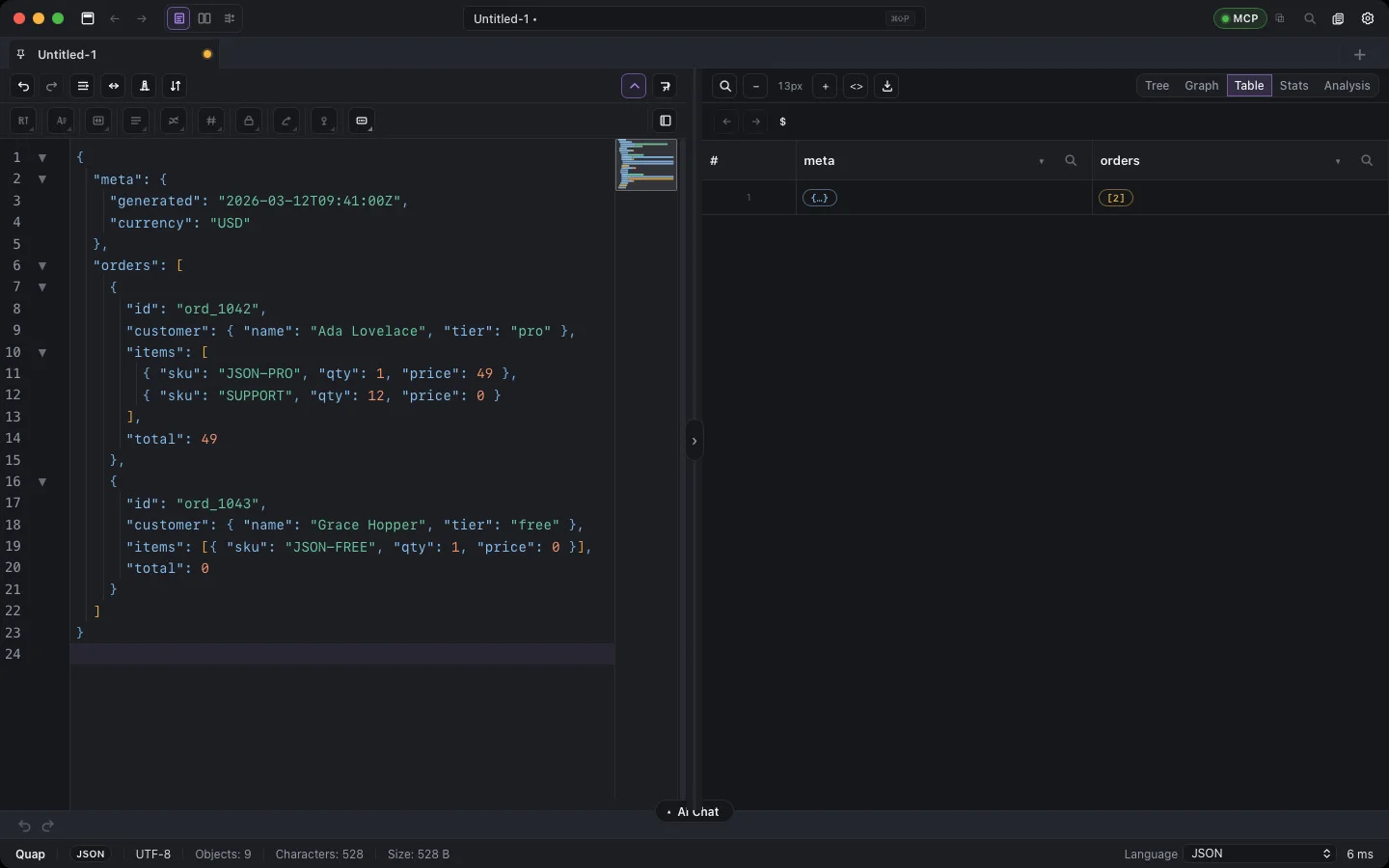
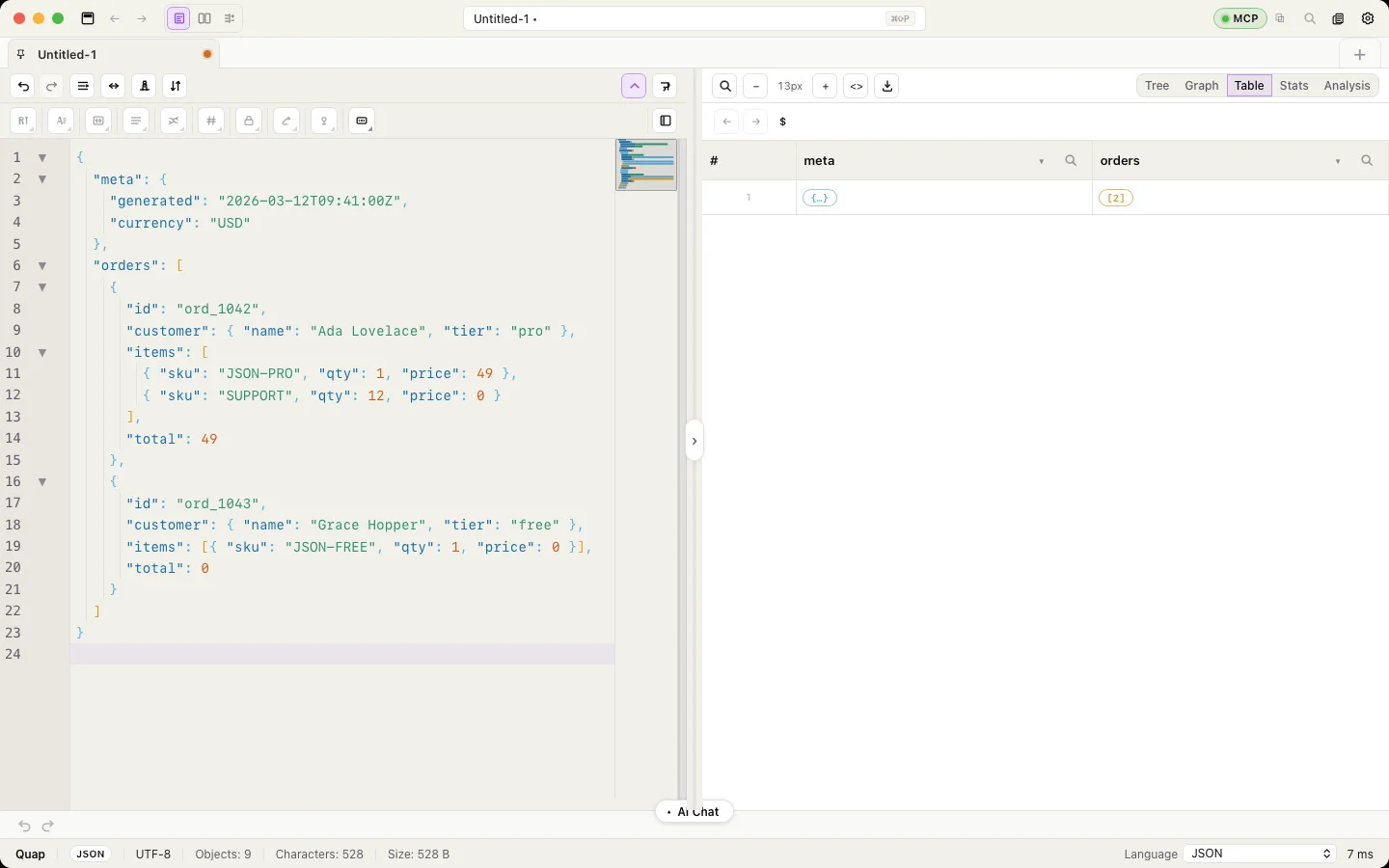
The window is split into the editor and the preview. The preview follows the editor as you type.
- Switch the preview between Tree, Graph, Table, Stats and Analysis with the buttons above it.
- In the Tree, click a key to jump to that line in the editor. Press ⌘F in the preview to search keys and values, or switch the search to JSONPath and type a path like
$.orders[0].customer. - In the Table, pick the array you want as rows; sort and filter by column.
3. Tidy it
- Format (⇧⌥F) indents the document; Minify (⇧⌥M) puts it on one line.
- If the document has comments, trailing commas, a BOM or broken quotes, the button becomes Clean and format: one click repairs and formats.
- Sort sorts an array by a property, sorts object keys, or sorts lines.
4. Change it
Select a value in the editor or a node in the Tree, then pick an operation from the edit toolbar (camelCase, Base64, SHA-256, AES-256, Mask, UUID…). Quap asks whether to apply it to the selection, to every value with the same key, or to the whole document. See Transforms & crypto.
Or open AI Chat (⌘J) and type what you want, for example "mask the emails and sort the keys". Quap shows the result and a diff; nothing changes until you click Apply. See AI Assistant.
5. Save it
Press ⌘S. If the content no longer matches the file extension (say you converted JSON to YAML in a .json file), Quap offers Save anyway, Save as…, or Change to .yaml.
Every action is also in the command palette (⌘⇧P) — type a few letters of its name and press Enter.