
Table
Turn any array of records into a sortable, filterable table, drill into nested data and export to CSV or Excel.
Pick the rows
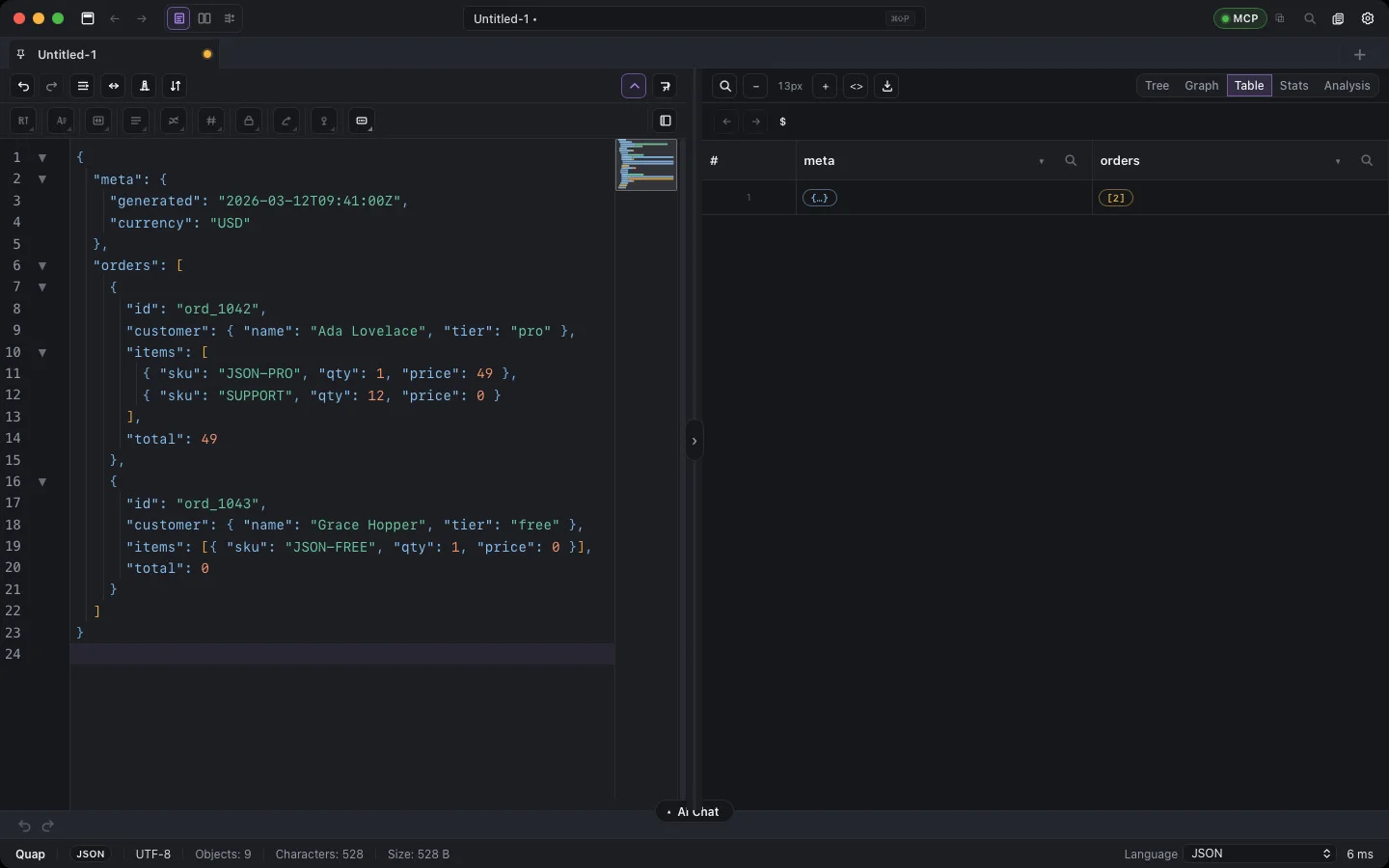
When you switch to Table, Quap lists every collection in the document that can be shown as rows. Pick one under Select source — for example $.orders.
Read and sort
- Click a column header to sort; click again to reverse.
- Drag a header edge to resize a column; double-click it to reset the width.
- Choose Rows per page and use the pager (First / Previous / Next / Last). The range shows as 1–50 of 1 200.
Filter
Click the filter icon in a column header. Tick the values to keep (Select all / Clear), or type in Search in this column…. Empty cells show as (blank). Click Apply.
Nested data
Cells that hold an object show as Record; cells that hold an array show as Collection with their item count. Click one to open it as its own table. A breadcrumb shows the path, and Back / Forward move between the levels.
Export
Export in the preview toolbar saves the current table as CSV or XLSX (Excel), or copies it to the clipboard. Image formats (PNG, JPEG, PDF) are available too. See Export.
Large files
On large-file tabs the table reads pages from disk as you move through them, so even millions of rows stay responsive. Column value lists then come from the loaded rows, which the filter tells you.