
Interface tour
The title bar, tabs, editor, preview, AI chat and footer — what each part does.
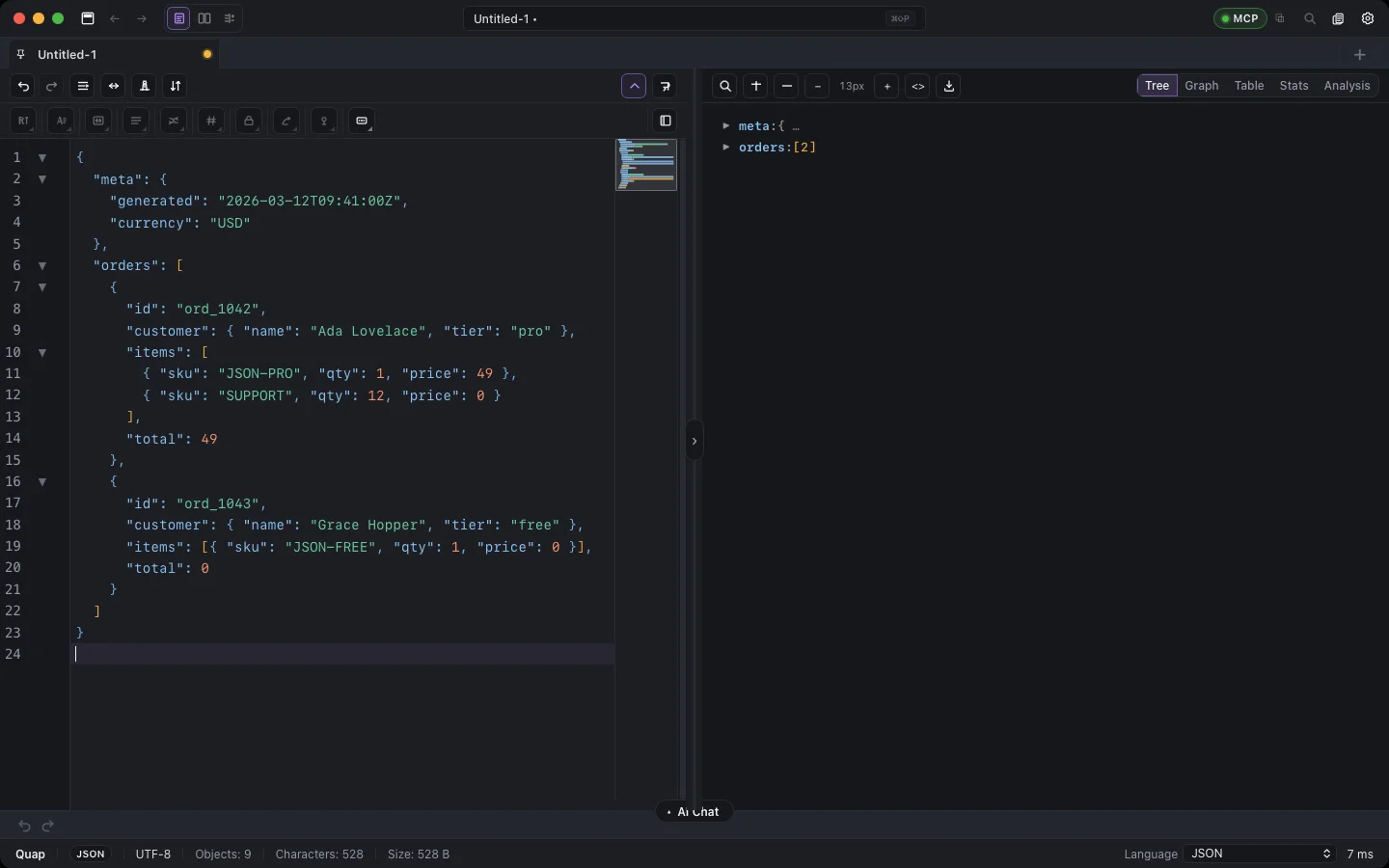
Title bar
From left to right:
- Back / Forward — move through the tabs you visited.
- Command search — click it (or press ⌘⇧P) to open the command palette.
- Clipboard history (⌘⇧V) and Search in project — see Clipboard history and Project folders.
- Document list toggle — show documents as top tabs or as a left sidebar.
- MCP — turns the
quap-mcpserver on or off for Cursor, Claude Desktop and other clients. The ⧉ button next to it copies a ready client config. See quap-mcp. - Settings (⌘,).
Tabs and sidebar
Each open document is a tab. Pin a tab from its context menu to keep it at the front. With many tabs, arrows appear at the edges and hidden tabs collect in a stack you can click to reveal. In sidebar mode, hovering a document shows a small preview of its content. More in Tabs & sidebar.
Editor
A code editor with syntax highlighting, folding, a minimap, lint markers for invalid JSON and line numbers. Above it sits the editor toolbar:
- Undo / Redo.
- Format / Minify — or Clean and format / minify when the document needs repairs.
- Sort — array, object keys or lines.
- Word Wrap (⌥Z).
- Show / hide edit toolbar.
The edit toolbar (top or left, configurable) holds every transform and crypto operation as grouped buttons. See Edit toolbar.
Preview
The right half (or bottom half — see Settings → Editor / preview layout) shows the document as Tree, Graph, Table, Stats or Analysis. SQL, Markdown, HTML and Base64 documents get their own previews. When the AI produced a result, an AI result view appears here too. The preview toolbar also holds Conv (format conversion, see Convert), search and Export. Drag the divider to resize; hide the preview from its toolbar.
AI Chat
A collapsible panel under the editor. Click its AI Chat header or press ⌘J to open or close it, and drag its top edge to resize. Describe a change in plain words; suggestion bubbles above the input offer common jobs for the current document. Results show in the preview with a diff, and Apply writes them to the document. See AI Assistant.
Footer
- Mode switcher — Editor, Compare and Diff. Compare and Diff need two open tabs; see Compare & Diff.
- Object count, characters, size and encoding of the active document, and how long the last operation took.
- Format and Language pickers — Quap detects both (Auto); override them when detection guesses wrong.
- The Quap version.
Long jobs (validating, finding all, converting, diffing) show as Background work with a Cancel button.
Menus
The menu bar has File, Edit, View, Transform, Crypto, Tools and Window. Most of their commands are also in the command palette (⌘⇧P).